WeBlog · Turtle
Pixel art in Python: draw a picture by typing it
You can draw a picture by typing it out as text, one letter for each coloured square. It started with a black cat in the gallery. This post shows how the trick works, how to make your own, and the 1989 image format that works exactly the same way.
A cat made of letters
This black cat, whiskers, collar and all, is from the PyWebLib gallery, made by Gleb K. There is no image file anywhere in the program. The whole picture is typed out as rows of letters.
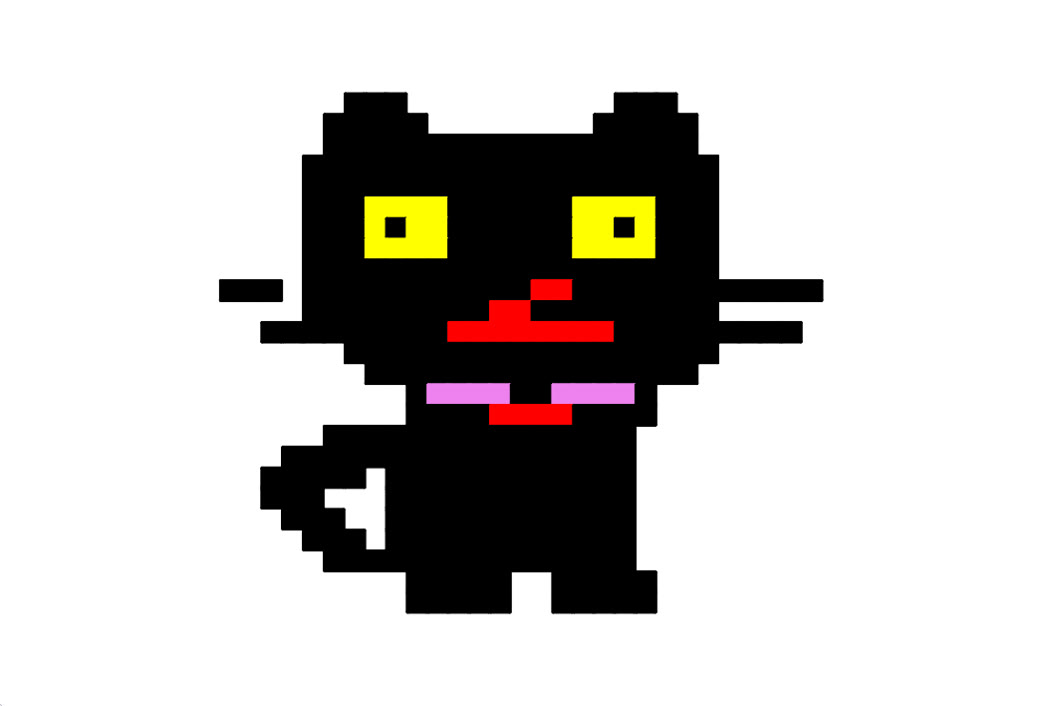
Here is the part of Gleb's code that holds the picture. The comments are in Ukrainian: 1 символ = 1 квадратик means "1 character = 1 little square", and the second line says B is black, Y yellow, R red and P pink.
# 1 символ = 1 квадратик
# B - чорний, Y - жовтий, R - червоний, P - рожевий
picture = [
"      BBB          BBB",
"     BBBBB        BBBBB",
"     BBBBBBBBBBBBBBBBBB",
"    BBBBBBBBBBBBBBBBBBBB",
"    BBBBBBBBBBBBBBBBBBBB",
"    BBBYYYYBBBBBBYYYYBBB",
"    BBBYBYYBBBBBBYYBYBBB",
"    BBBYYYYBBBBBBYYYYBBB",
"    BBBBBBBBBBBBBBBBBBBB",
"BBB BBBBBBBBBBBRRBBBBBBBBBBBB",
"    BBBBBBBBBRRBBBBBBBBB",
"  BBBBBBBBBRRRRRRRRBBBBBBBBB",
"      BBBBBBBBBBBBBBBBBB",
"       BBBBBBBBBBBBBBBB",
"         BPPPPBBPPPPB",
"         BBBBRRRRBBBB",
"     BBBBBBBBBBBBBBB",
"   BBBBBBBBBBBBBBBBB",
"  BBBBB BBBBBBBBBBBB",
"  BBB   BBBBBBBBBBBB",
"   BBB  BBBBBBBBBBBB",
"    BBB BBBBBBBBBBBB",
"     BBBBBBBBBBBBBBB",
"         BBBBB  BBBBB",
"         BBBBB  BBBBB"
]

colors = {
    "B": "black",
    "Y": "yellow",
    "R": "red",
    "P": "violet"
}
Squint at the list and you can already see the cat: the ears on the first two rows, the Y eyes with a B pupil in each, and the RR nose.
How it works
The program has two parts, and they work together:
- The picture is a list of strings, one string per row. Each character is one square.
- The key is a dictionary that says which colour each letter means. Any character that isn't in the key, like a space, is simply skipped, so it shows the background.
Two loops then walk the picture. The outer loop goes down the rows, the inner loop goes along each row, and enumerate gives the position of each character as well as the character itself. The row and column numbers turn into a spot on the screen:
y = start_y − row × (size + gap)
The minus is there because rows count down the page, but in turtle, y goes up the screen. Each step to the next row moves the turtle lower. The gap leaves a thin line between squares, which is what makes it look like pixels.
Make your own: a space invader
Here is the same idea from scratch, with a classic arcade alien. Draw your picture with X for filled and a space for empty, and the loops do the rest.
import turtle

turtle.bgcolor("#1b1030")
turtle.speed(10)
turtle.hideturtle()

# One character = one square. A space is left empty.
picture = [
    "  X     X  ",
    "   X   X   ",
    "  XXXXXXX  ",
    " XX XXX XX ",
    "XXXXXXXXXXX",
    "X XXXXXXX X",
    "X X     X X",
    "   XX XX   ",
]

colours = {
    "X": "#69db7c",
}

size = 22   # each square is 22 steps wide
gap = 4     # and 4 steps apart, so you can see the pixels

def square(x, y, colour):
    turtle.penup()
    turtle.goto(x, y)
    turtle.pendown()
    turtle.color(colour)
    turtle.begin_fill()
    for side in range(4):
        turtle.forward(size)
        turtle.right(90)
    turtle.end_fill()

start_x = -143   # top-left corner of the picture
start_y = 104

for row, line in enumerate(picture):
    for col, letter in enumerate(line):
        if letter in colours:
            x = start_x + col * (size + gap)
            y = start_y - row * (size + gap)
            square(x, y, colours[letter])
Open in the Playground Opens with this code already in the editor.
Tip: sketch your picture on squared paper first, then type it in one row at a time. Rows don't all need to be the same length, and spaces at the start of a row push it to the right.
More colours: a strawberry
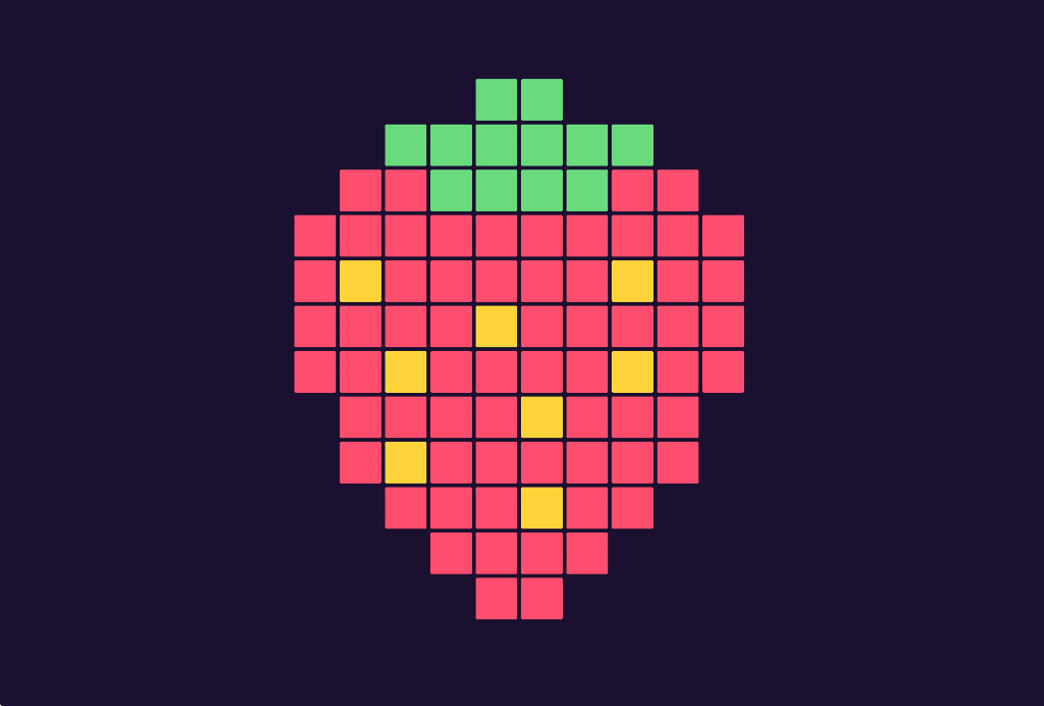
For more colours, add more letters to the key. This strawberry uses three: R for red, G for the green leaves and Y for the seeds. Below is just the picture and its key. The drawing code is the same as the invader's.
picture = [
    "     GG     ",
    "   GGGGGG   ",
    "  RRGGGGRR  ",
    " RRRRRRRRRR ",
    " RYRRRRRYRR ",
    " RRRRYRRRRR ",
    " RRYRRRRYRR ",
    "  RRRRYRRR  ",
    "  RYRRRRRR  ",
    "   RRRYRR   ",
    "    RRRR    ",
    "     RR     ",
]

colours = {
    "R": "#ff4d6d",   # red
    "G": "#69db7c",   # green
    "Y": "#ffd43b",   # yellow seeds
}
Open the strawberry in the Playground
A trick: draw half, mirror the rest
Lots of pixel art is symmetrical, like the invader. So you only need to type the left half, and Python can make the right half for you. line[-2::-1] reads a string backwards, starting one character in from the end, so the middle column isn't copied twice.
# Only the left half, up to and including the middle column
half = [
    "  X   ",
    "   X  ",
    "  XXXX",
    " XX XX",
    "XXXXXX",
    "X XXXX",
    "X X   ",
    "   XX ",
]

# Add each row's mirror image, skipping the middle column so it isn't doubled
picture = [line + line[-2::-1] for line in half]
Put this in place of the picture list in the invader program, and you get exactly the same alien from half the typing.
The same idea, from 1989: XPM
This idea is older than you might think. In 1989, an image format called XPM (X PixMap) was made for the X Window System on Unix computers, and it was used for icons on those desktops. An XPM image is a text file, and it looks like this:
/* XPM */
static char *invader[] = {
/* width height colours characters-per-pixel */
"11 8 2 1",
"  c None",
"X c #69db7c",
"  X     X  ",
"   X   X   ",
"  XXXXXXX  ",
" XX XXX XX ",
"XXXXXXXXXXX",
"X XXXXXXX X",
"X X     X X",
"   XX XX   "
};
It's the same two parts. The first string gives the size and how many colours there are. Next comes the key, with each character followed by c and its colour, where None means see-through. Then the picture follows, one string per row. Gleb's colors dictionary is the key and his picture list is the rows.
XPM files are written in the C programming language, so a program could include its icons straight in its source code. Save the text above as invader.xpm and many image editors, such as GIMP, will still open it as a picture.
Type your own picture
A pet, a game character, your initials: sketch it, type it, run it. Then share it to the gallery, like Gleb did.
Start from the invader